Introduction
Nextra is a framework on top of Next.js, that lets you build content focused websites. It has all the great features from Next.js, plus extra power to create Markdown-based content with ease.
Quick Start
To start using Nextra, you need to select a theme first:
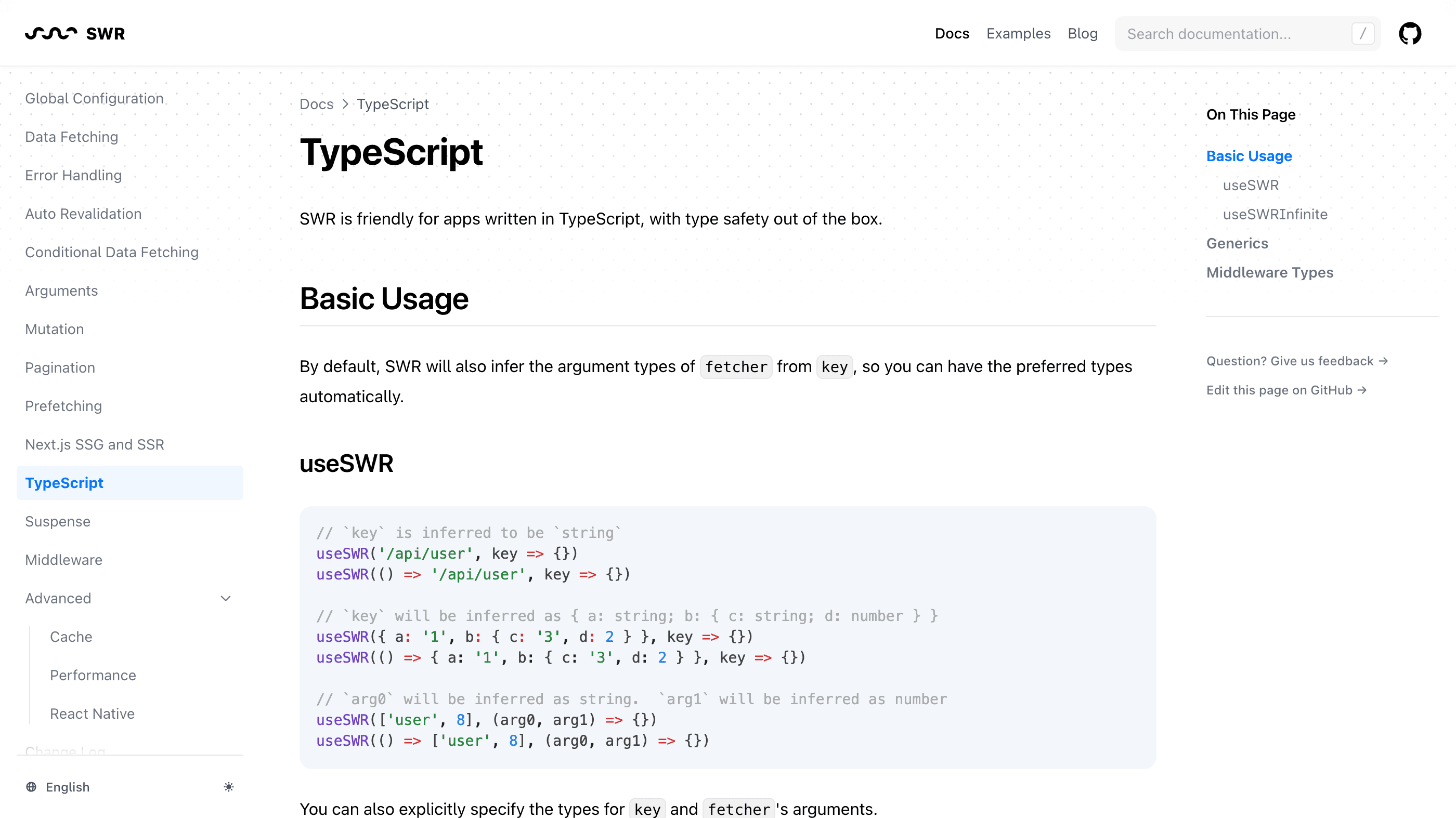
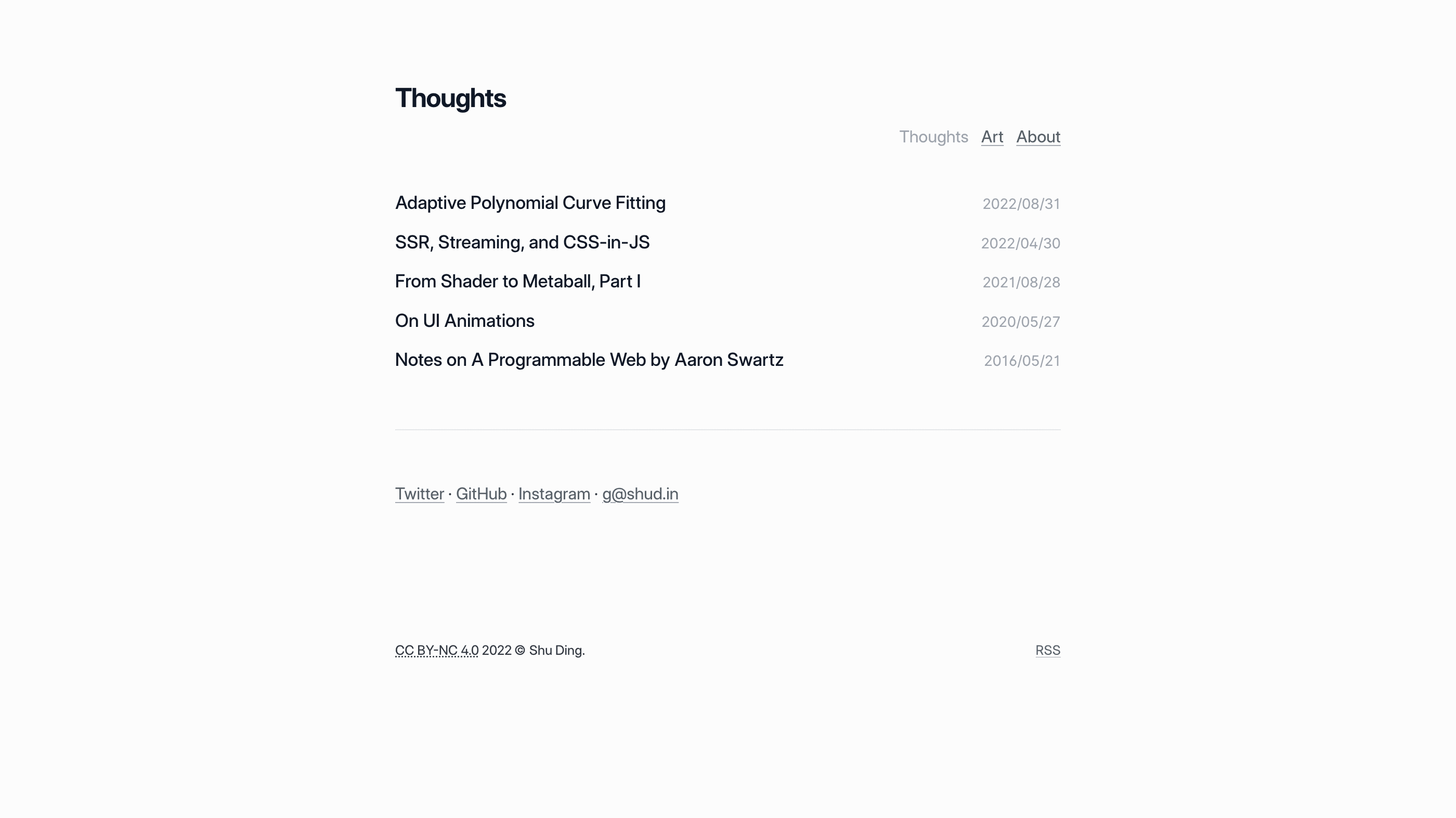
If you want to use Nextra without using these built-in themes, you can follow the Custom Theme docs.
Nextra FAQ
The Nextra FAQ is a collection of useful questions and answers about the project. If you have a question that isn’t answered here, please open a discussion.
Can I use Nextra with Next.js app router?
No, Nextra only works with the /pages directory at the moment. Support for
the app router has not been implemented yet. But you can use /app and
/pages at the same time - just put your docs inside /pages and your other
routes in /app
Can I use X with Nextra?
The answer is “yes” for most things. Since Nextra is just a Next.js plugin, almost all the things that can be done with React can be done with Nextra. Here are some examples and guides:
How can I add a live coding component in Nextra?
There are libraries like Sandpack and react-live that can help you add live coding components to your MDX.
Get Started
Similar to the Docs Theme, you can install the blog theme with the following commands:
Start as a New Project
Install
To create a Nextra Blog site manually, you have to install Next.js, React, Nextra, and Nextra Blog Theme. In your project directory, run the following command to install the dependencies:
npm i next react react-dom nextra nextra-theme-blogIf you already have Next.js installed in your project, you only need to
install nextra and nextra-theme-blog as the add-ons.
Add the following scripts in package.json:
"scripts": {
  "dev": "next",
  "build": "next build",
  "start": "next start"
},
You can start the server in development mode with the following command according to your package manager:
npm run devor in production mode:
npm run build
npm run startIf you’re not familiar with Next.js, note that development mode is significantly slower since Next.js compiles every page you navigate to.
Add Next.js Config
Create the following next.config.mjs file in your project’s root directory:
import nextra from 'nextra'

const withNextra = nextra({
  theme: 'nextra-theme-blog',
  themeConfig: './theme.config.jsx'
})

export default withNextra()

// If you have other Next.js configurations, you can pass them as the parameter:
// export default withNextra({ /* other next.js config */ })
With the above configuration, Nextra can handle Markdown files in your Next.js project, with the specified theme. Other Nextra configurations can be found in Guide.
Create Blog Theme Config
Lastly, create the corresponding theme.config.jsx file in your project’s root
directory. This will be used to configure the Nextra Blog theme:
export default {
  footer: <p>MIT 2023 © Nextra.</p>,
  head: ({ title, meta }) => (
    <>
      {meta.description && (
        <meta name="description" content={meta.description} />
      )}
      {meta.tag && <meta name="keywords" content={meta.tag} />}
      {meta.author && <meta name="author" content={meta.author} />}
    </>
  ),
  readMore: 'Read More →',
  postFooter: null,
  darkMode: false,
  navs: [
    {
      url: 'https://github.com/shuding/nextra',
      name: 'Nextra'
    }
  ]
}
Create Next.js App Component
Create pages/_app.jsx file with the following content:
export default function App({ Component, pageProps }) {
  return <Component {...pageProps} />
}
Ready to Go!
Now, you can create your first MDX page as pages/index.mdx:
# Welcome to Nextra

Hello, world!
And run the dev command specified in package.json to start developing the
project! 🎉
npm run dev